
How to Fix Login Browser Not Showing in the Alza App
Sometimes, when signing in to the Alza app on Android devices, an issue may occur where the external login page doesn't appear, preventing you from logging in. This is often caused by an unsupported default browser that blocks the opening of external apps (known as deeplinks). In this article, you'll learn how to fix the issue and set the correct default browser.

- How to set Chrome as the default browser on Android?
- Using the Samsung and Xiaomi web browsers
- Discover the comfort and convenience of shopping with the Alza.cz mobile app
How to set Chrome as the default browser on Android?
Once you have the Alza app installed, you’ll be prompted to enter your login information when launching it for the first time. On Android phones, this should open a browser window with the login page for Alza.cz. However, in many cases, the window fails to appear. This issue is usually caused by an unsupported default browser that blocks opening external apps from within the browser — also known as deep links. Here's how to easily fix it.
Setting Chrome as the default browser on Samsung phones


Setting Chrome as the default browser on Xiaomi phones


Using the default Samsung and Xiaomi browsers
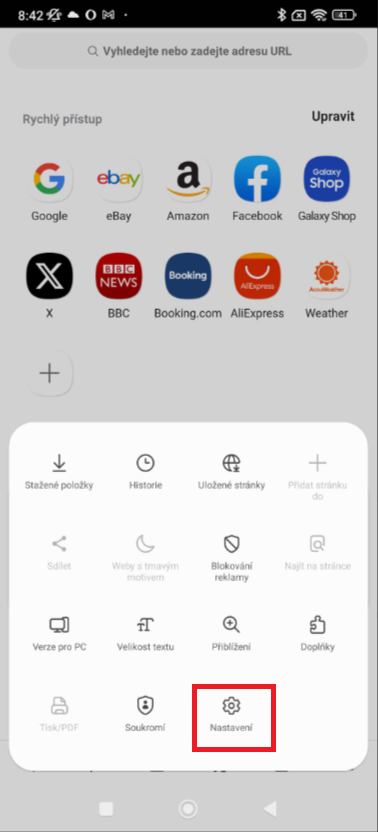
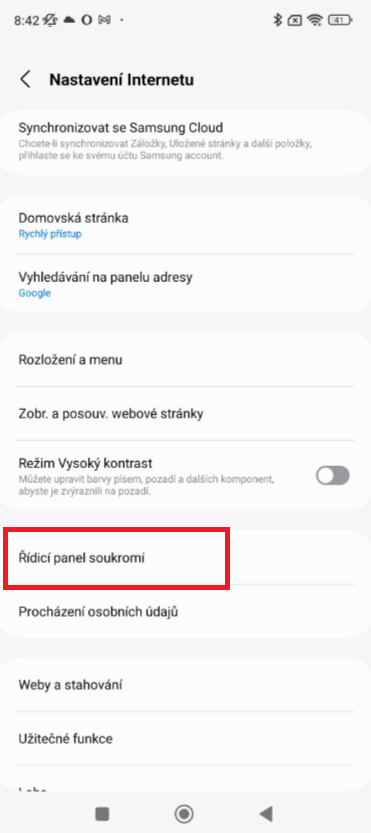
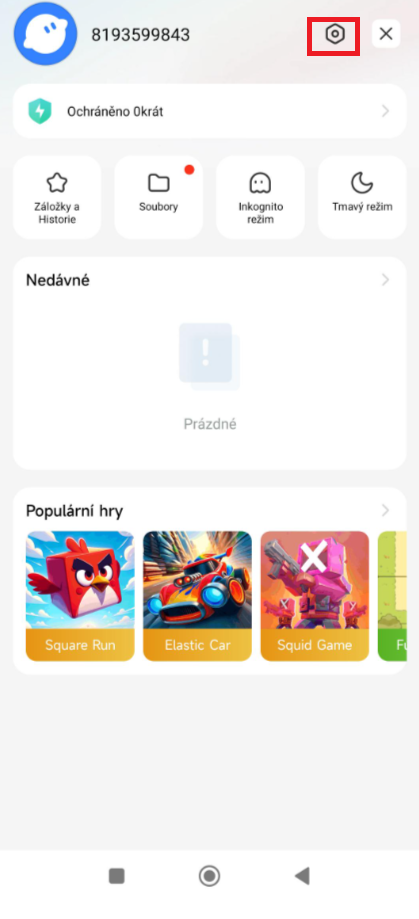
Many users also stick with the manufacturer’s pre-set default browser. We've created an illustrated guide to help you set up both the Samsung and Xiaomi browsers. It only takes a minute on either device.
Enabling external app access in the Samsung browser


Enabling external app access in the Xiaomi browser



With our illustrated guide, you’ll have no trouble setting up your Android phone to complete the first login to the Alza app.